Skip to content
Sunday, June 28, 2026
MALIKA KAROUM NEW FUTURE

MALIKA KAROUM NEW FUTURE

– THE NEW WEB 3.0 FUTURE –

  • Home
  • Definitions of Metaverse
  • Malika Karoum: Artificial Intelligence
  • Malika Karoum: ChatGPT
  • Malika Karoum Metaverse
    • Metaverse Digital Virtual Environment
    • A FUTURE METAVERSE
    • METAVERSE -THE NEW FUTURE-
    • Art – The Next Generation
    • The New Web 3.0
    • Metaverse project
    • What are Non Fungible Tokens (NFT-tokens)?
    • What are NFTs?
  • Malika Karoum Media

How to Customize the Login Screen on Your Mac

Malika Karoum Online News
November 23, 2019November 23, 2019Malika Karoum DubaiLeave a Comment on How to Customize the Login Screen on Your Mac
customize-login-screen-mac

You’ve probably customized the menu bar, Dock, and other elements on your Mac. But did you know macOS lets you change the login screen to suit your needs as well?

Maybe you want to require both a username and password when you log in for additional security. Or maybe you forget your password often and would like to display a hint. Have a favorite quote you like to start your day? You can add that to your login screen too.

Here we’ll walk you through how to easily change the login screen on a Mac.

Change Your Mac Login Screen

Most of the login screen settings are located in your System Preferences. These settings let you make tweaks like enabling automatic login, displaying a list of users, showing control buttons, turning on VoiceOver, and more.

Mac Login Screen

To get started, click on the Apple menu > System Preferences from the menu bar and select Users & Groups.

Before making changes to the login screen, you may need to unlock the Users & Groups preferences. If so, click the lock icon in the lower-left corner of the window, enter your password when prompted, and click Unlock.

Now, click Login Options at the bottom of the left pane. On the right side of the resulting page, select from the following options that you want to use on the login screen.

Mac Login Screen Settings

Mac Login Screen Options

Automatic login: This feature lets you head directly to the desktop when you start your Mac, rather than having to enter your credentials first. Turn on automatic login and enter the user’s account name and password to enable it. It’s convenient if you’re the only user of your Mac and always keep the computer in a safe location.

If you have FileVault turned on, automatic login is disabled by default. For more on this feature, check out our helpful FileVault guide.

Display login window as: You can choose from List of users and Name and password. The former lets you pick your username and then enter your password, while the latter requires you to enter both.

If you’re concerned about security, choose Name and password since it requires you to know both the username and password.

Show the Sleep, Restart, and Shut Down buttons: Check this box to display these controls on the login screen.

Show Input menu in login window: Enabling the Input menu lets the user pick the language to use on the Mac before logging in. This is helpful if you regularly switch between languages or keyboard formats.

Show password hints: You can enable the display of password hints when you click the question mark or enter the password incorrectly three times in a row.

To add or change a password hint, click a user on the left and select Password. Next, hit the Change Password button. Enter your old password, along with a new one, and confirm. Then add your password hint at the bottom and click Change Password.

Mac Login Screen Password Hint

Show fast user switching menu as: This option lets you switch between users quickly from your Mac menu bar. You can choose to display full names, account names, or an icon.

When you’re done making your selections, click the lock button again to prevent further changes.

Enable Accessibility Options on the Login Screen

VoiceOver, zoom, sticky keys, and additional accessibility options are also available on the login screen. Click the Accessibility Options button and then check the boxes for those items you want to display.

Mac Login Screen Accessibility Options

When you turn on any of these accessibility features, your settings will apply for every user on the login screen. Turning off a feature will disable it for all users on the screen as well.

Add a Custom Message to the Login Screen

You can add a custom message to the login screen. For instance, you might want to set your favorite motivational quote to start your day. Or you could add your contact information, so an honest person who finds your Mac can get in touch with you to return it.

To add a message to your login screen, click the Apple menu > System Preferences from the menu bar and select Security & Privacy.

If necessary, click the lock button and enter your password to make this change. Then follow these simple steps:

  1. Click the General tab.
  2. Check the box for Show a message when the screen is locked box and then click Set Lock Message.
  3. Enter the message you want to display on the login screen in the popup dialog box, then click OK.

Mac Login Screen Message

The next time you lock your screen or start up your Mac, you’ll see your message at the bottom of the login screen.

Change Your Profile Picture

If you use the login screen with a list of users as described earlier, the user profile pictures display above the names. You can change your profile picture easily if you like.

To change your picture, click the Apple menu > System Preferences and choose Users & Groups. Then do the following to change your picture:

  1. Select your user profile on the left.
  2. Move your cursor over the profile picture and click Edit when it appears.
  3. In the popup window, select the location of the image you would like to use or pick Camera to snap one with your Mac’s camera.
  4. Optionally, use the zoom slider to adjust the photo.
  5. Click Save.

Change Mac Profile Picture

Login With Your Apple Watch

While technically not a login screen “customization,” there is another way to log into your Mac besides the automatic login or name and password options we’ve mentioned. If you own an Apple Watch, you can log into your Mac with it too.

To enable the feature, click the Apple menu > System Preferences and choose Security & Privacy. Then walk through these steps:

  1. Select the General tab.
  2. Check the box for Use your Apple Watch to unlock apps and your Mac. (If your Apple Watch is running watchOS 3, 4, or 5, the box will have the label Use your Apple Watch to unlock your Mac instead.)
  3. Enter your Mac user password if prompted.

Mac Login with Apple Watch

Once you enable this feature and land on your Mac login screen while wearing your Apple Watch, you’ll see a brief message on the screen that says Unlocking with Apple Watch.

Your Mac’s Own Look and Feel

You can experiment with any or all of these options to discover what you like best on your Mac login screen. And since the features are so easy to change, you can adjust them whenever you like.

For other macOS personalization options, take a look at how to change up your Mac desktop or customize the Terminal on Mac to make it more useful.

Read the full article: How to Customize the Login Screen on Your Mac

MakeUseOf

Tagged CustomizeLoginScreen

Post navigation

5 Black Friday Curators to Find the Best Deals for Online and Offline Shopping
The Windows Run Commands Cheat Sheet

Related Posts

5 Medicine Reminder Apps to Identify Pills and Remember to Take Them

August 11, 2018August 11, 2018Malika Karoum Dubai

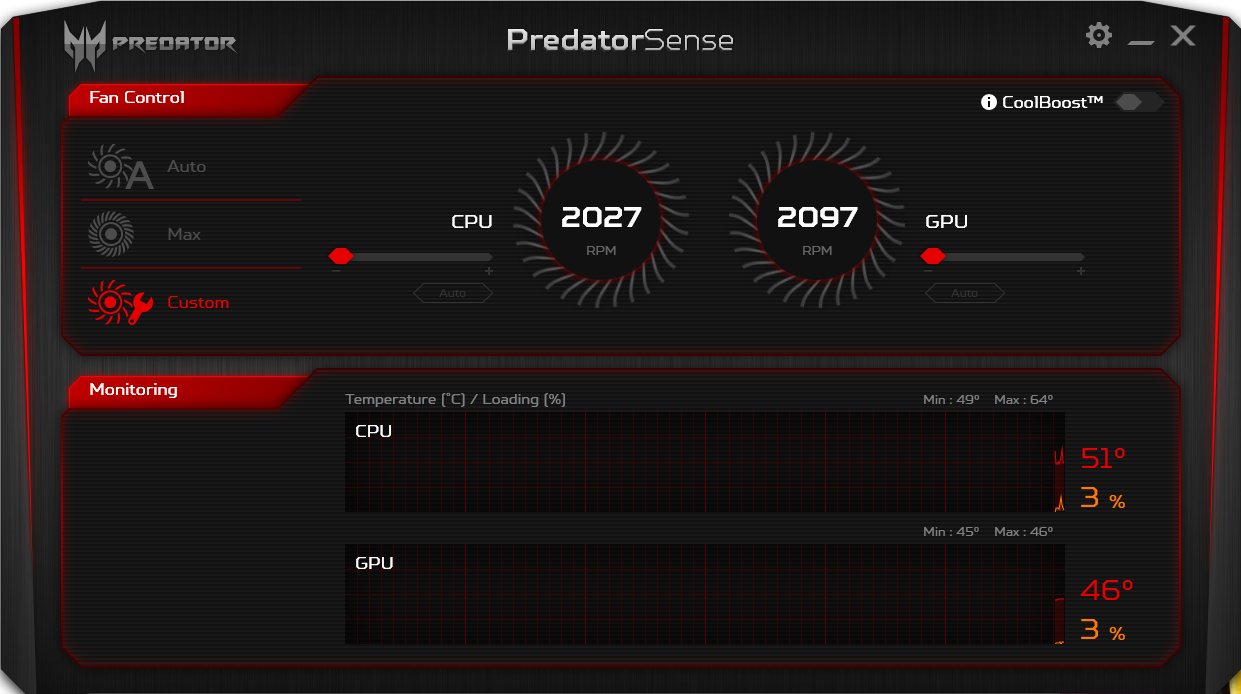
The 6 Best Laptop Fan Control Apps to Keep Your Laptop Cool

April 18, 2021April 18, 2021Malika Karoum Dubai

How to Resize Images on Mac Using Photos or Preview

February 14, 2020February 14, 2020Malika Karoum Dubai

RSS Malika Karoum Global News

  • London Knights stretch draft streak to 58 years
    It's a streak that reached 58 years when the Philadelphia Flyers called the name of Maksim Sokolovskii at number 27 overall on June 26 in Buffalo, N.Y.
    Mike Stubbs
  • Flooding concerns, tornado threats sweep across Canadian Prairies
    Flooding concerns are mounting in Alberta as Edmonton nears a June rainfall record, while tornado watches and severe storms threaten parts of Saskatchewan.
    Prisha Dev
  • Winnipeg Jets add 6 players on Day 2 of NHL Entry Draft
    The Winnipeg Jets added two goalies, two defencemen and a pair of forwards to their prospect pool on the second day of the NHL Entry Draft in Buffalo.
    Kelly Moore
  • Edmonton police shoot man dead after alleged assaults during hit-and-runs
    A 59-year-old man is dead after Edmonton police say he allegedly assaulted emergency workers and fled before an officer-involved shooting.
    Prisha Dev
  • Manitoba wildfire forces mandatory evacuation of Lynn Lake
    A mandatory evacuation has been ordered for Lynn Lake as a rapidly advancing wildfire threatens the community. Residents and visitors have been told to leave immediately.
    Pooja Misra
  • Penguins keep Ruck twins together at NHL draft
    Markus Ruck was ecstatic for his sibling. There was also a significant level of anxiety.
    Globalnews Digital
  • B.C. premier visiting China to pitch LNG project as province’s ‘really big fish’
    B.C. Premier David Eby says his first trade mission to China will focus on forestry, seafood and LNG as the province looks to expand trade beyond the U.S.
    Globalnews Digital
  • Canada’s first offshore wind farms move closer to reality as regulator clears bidders
    Canada’s first offshore wind farms moved closer to reality as Nova Scotia regulators approved companies to bid on seabed licences later this year.
    Globalnews Digital
  • Motorcyclist dead, Brampton man charged after fatal crash involving SUV
    A 21-year-old motorcyclist was killed in a collision with an SUV in Brampton early Saturday morning. Police say the SUV driver allegedly fled the scene before later returning.
    Prisha Dev
  • Two youths charged after 16-year-old boy found dead in Winnipeg parking lot
    A 16-year-old boy from Bloodvein River First Nation has been identified as the victim of a Winnipeg homicide investigation after police found him dead in a parking lot.
    Prisha Dev

MALIKA KAROUM METAVERSE 2025

  • The AI "Super App" Era Is Here (9 Inevitable Trends)
    June 21, 2026 by Dr. Mfon Akpan
    The era of single-use AI tools is officially dead. Welcome to the age of the AI Super App.In this video, Riley Brown breaks down the 9 inevitable AI agent trends that are fundamentally reshaping how we work, code, and automate our digital lives. From autonomous skills that self-assemble to AI agents that never turn off, […]
  • I Watched A 100x AI Developer Code… This Is Pure Insanity 🤯
    June 14, 2026 by Dr. Mfon Akpan
    I just reacted to David Ondrej’s interview with Pietro (former Anthropic engineer and founder of Magic Path), and honestly... software development will NEVER be the same.Watch as Pietro demonstrates how he uses OpenAI's Codex to automate 99% of his workflow, completely ditching traditional tools like Claude Code and Cursor. From coding entire interactive apps from […]
  • The Death of the Chatbot: Why OpenAI Just Merged ChatGPT & Codex
    June 7, 2026 by Dr. Mfon Akpan
    Everything we thought we knew about AI productivity just changed. OpenAI has officially merged its consumer ChatGPT team and its agentic-coding Codex team into a single unified platform.This isn't just a UI update—it’s the start of the "Execution Era." We are moving from AI that gives you advice to AI that does the work for […]
  • Google’s Massive AI Shift: Meet "Spark," the Agent That Works While You Sleep!
    May 31, 2026 by Dr. Mfon Akpan
    Google just changed the game at I/O 2026. Forget standard chatbots—Gemini Spark is here, and it’s a fully proactive AI agent designed to handle long-horizon tasks in the background, even when your computer is off.In this video, we break down:What is Gemini Spark and how does it differ from traditional AI?The "Antigravity" harness: How Google […]
  • Google I/O 2026: Everything You Need to Know in 10 Minutes! 🤯
    May 24, 2026 by Dr. Mfon Akpan
    Everything announced at Google I/O 2026! Get the quick summary on Android 16, the latest Gemini AI models, new smart features, and upcoming Google ecosystem updates. Don't forget to LIKE and SUBSCRIBE to stay up to date with the latest in tech!#GoogleIO2026 #Tech #Android16 #Gemini
  • Inside Thinking Machines: Next-Gen Interaction Models
    May 17, 2026 by Dr. Mfon Akpan
    How will we actually work alongside the next generation of AI? In this video, we go inside "thinking machines" to explore the next-gen interaction models that are reshaping human-AI collaboration. As AI models shift from simple chat interfaces to complex, reasoning-based systems, our approach to collaboration must scale. We break down the structural frameworks, technical […]
  • ChatGPT is BACK with SWAGGER! (The Ultimate AI Game Changer)
    May 10, 2026 by Dr. Mfon Akpan
    The wait is over—ChatGPT is back and it’s bolder than ever! In this video, we dive into the latest updates, the new "swagger" in its responses, and why this is a total game changer for creators and tech enthusiasts alike.We’re breaking down:The New Persona: How the AI's tone has shifted to be more confident and […]
  • ChatGPT Codex 5.5: The Greatest AI Coding Tool Ever? 🚀
    May 3, 2026 by Dr. Mfon Akpan
    Is this the end of manual coding?In today’s video, we are diving deep into ChatGPT Codex 5.5, the latest evolution in AI-driven development. Whether you are a seasoned software engineer or just starting your coding journey, this tool is a total game-changer for productivity, debugging, and rapid prototyping.In this video, you will learn:✅ Key Features: […]
  • GPT-5.5 IS HERE! The New OpenAI Model Everyone’s Talking About!
    April 26, 2026 by Dr. Mfon Akpan
    The wait is finally over! OpenAI has just shocked the world with the release of GPT-5.5, a next-generation frontier model that is redefine the boundaries of artificial intelligence. In this video, we break down every single major announcement from the launch, explaining exactly why this new model is the most discussed topic in technology right […]
  • DARKCODE: The Ultimate Hacking & Programming Guide (2026)
    April 19, 2026 by Dr. Mfon Akpan
    Welcome to the frontier of digital mastery. Whether you're a seasoned developer or just starting your journey into the shadows of the web, DARKCODE is your definitive roadmap to understanding the architecture of the modern world.In this comprehensive guide, we strip away the jargon to give you a clear, high-energy look at the intersection of […]
News Portal | Theme: News Portal by Mystery Themes.